Drip Emails in Quote & Apply
Quote & Apply supports drip email campaigns, allowing you to automatically follow up with prospects using either BackNine’s default emails or your own custom templates.
Enabling Drip Emails
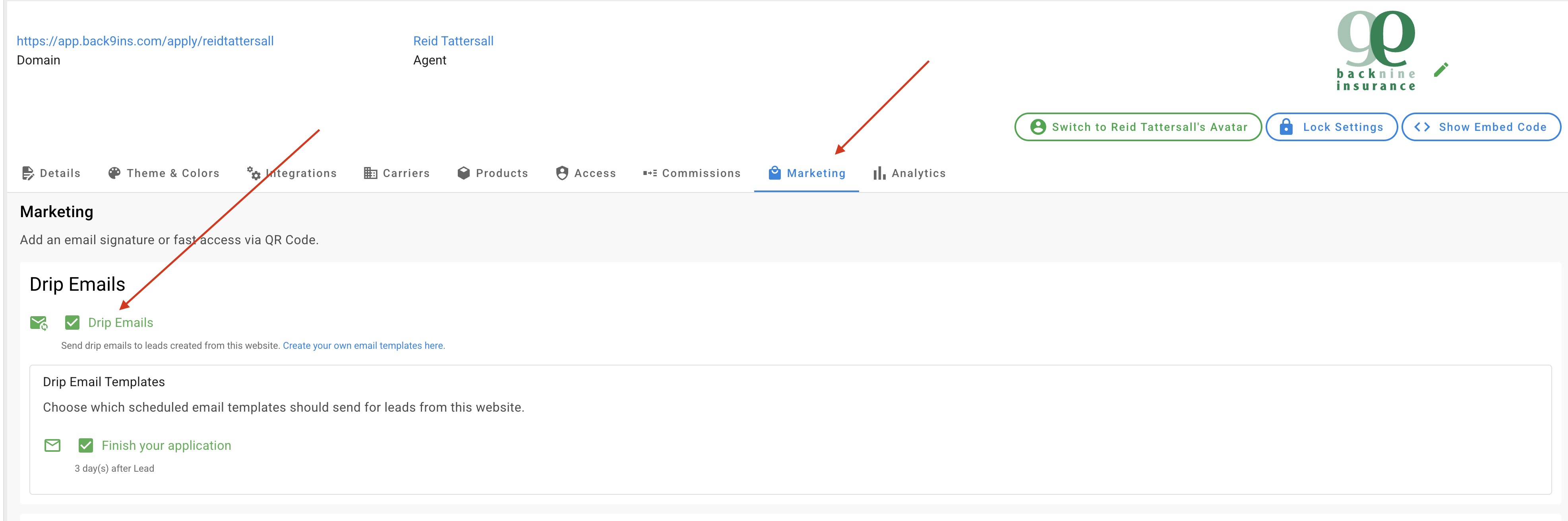
Drip emails are disabled by default. To enable them:
- Go to your Quote & Apply website.
- Navigate to the Marketing tab.
- Check the “Drip Emails” checkbox.
Creating Custom Drip Emails
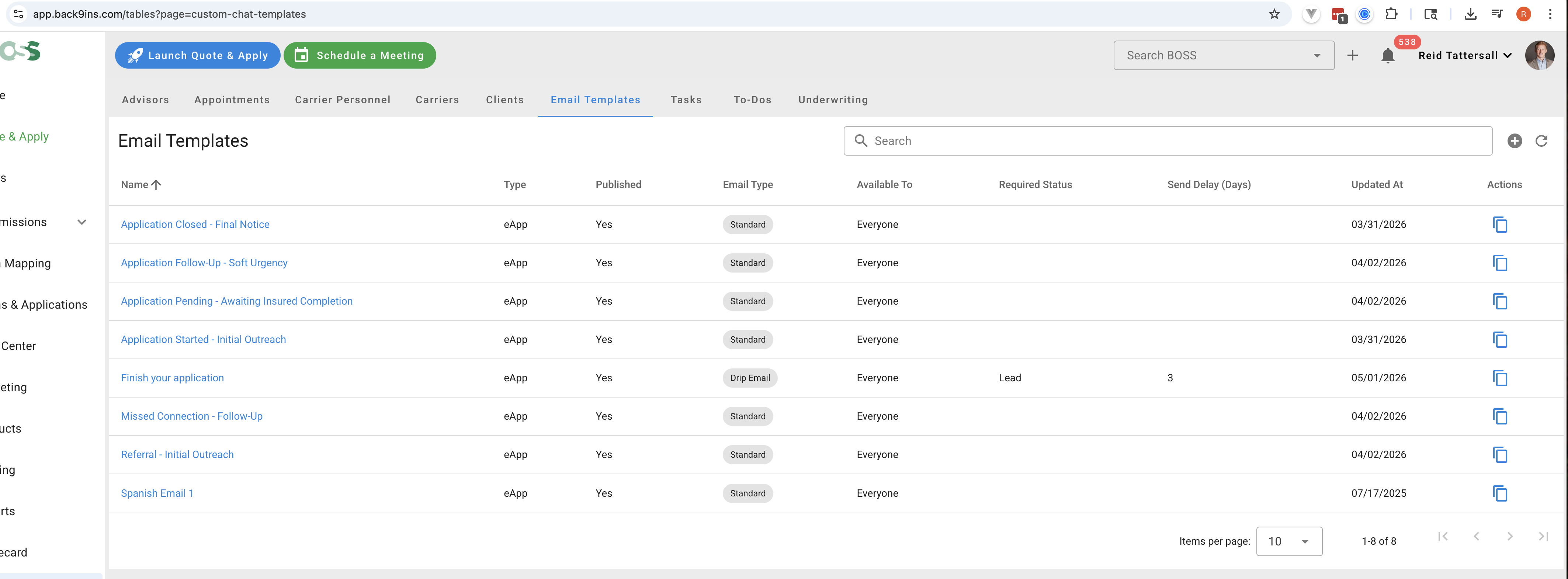
Want to use your own messaging? You can create custom email templates:
- Go to Tables > Email Templates.
- Create a new template or edit an existing one.
Configuring When Emails Are Sent
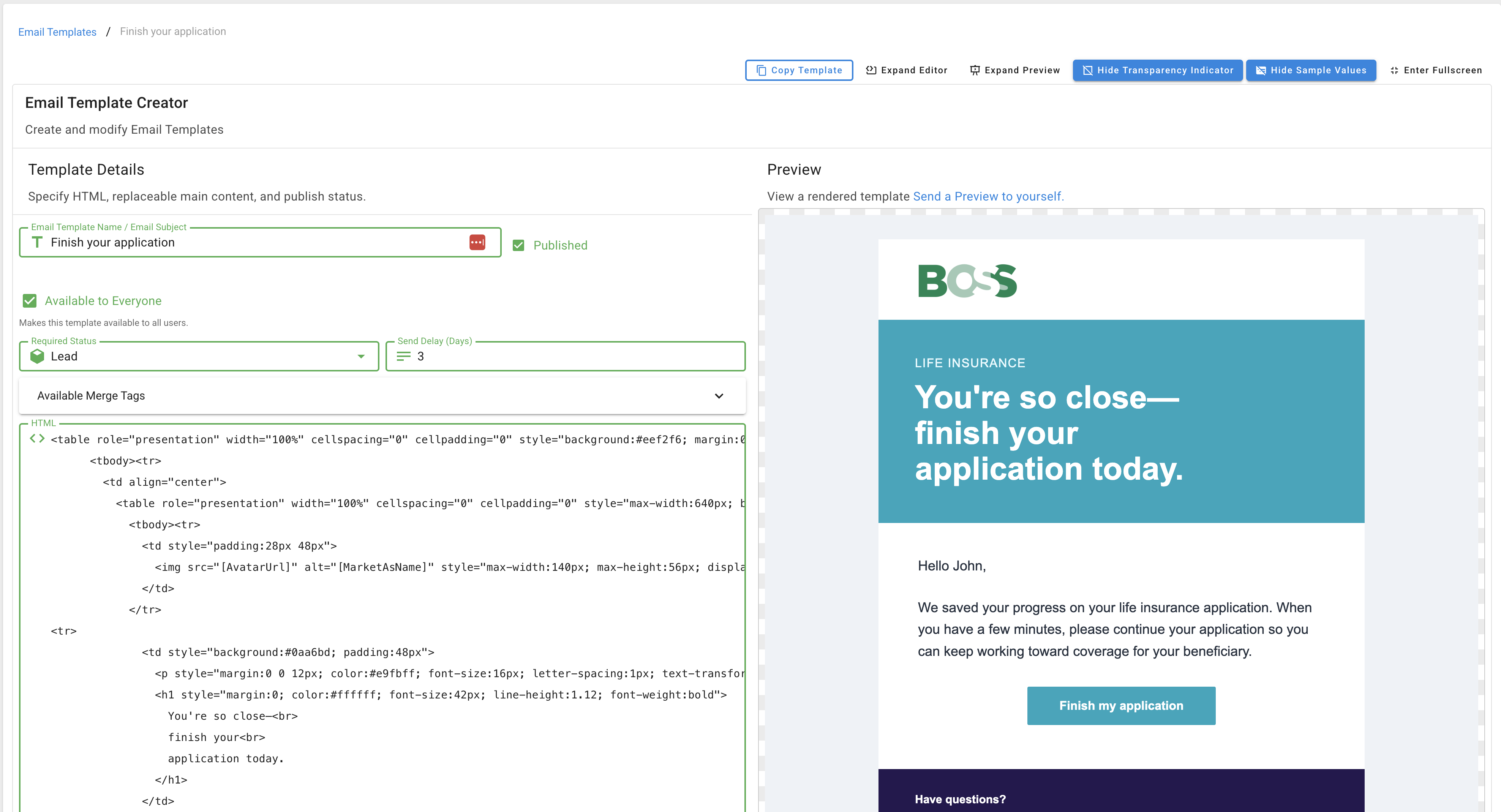
Each drip email can be scheduled based on an eApp’s status. You can define how many days after a status change the email should send.
Supported triggers include:
- Lead
- Sent
- Completed
Viewing Scheduled & Sent Emails
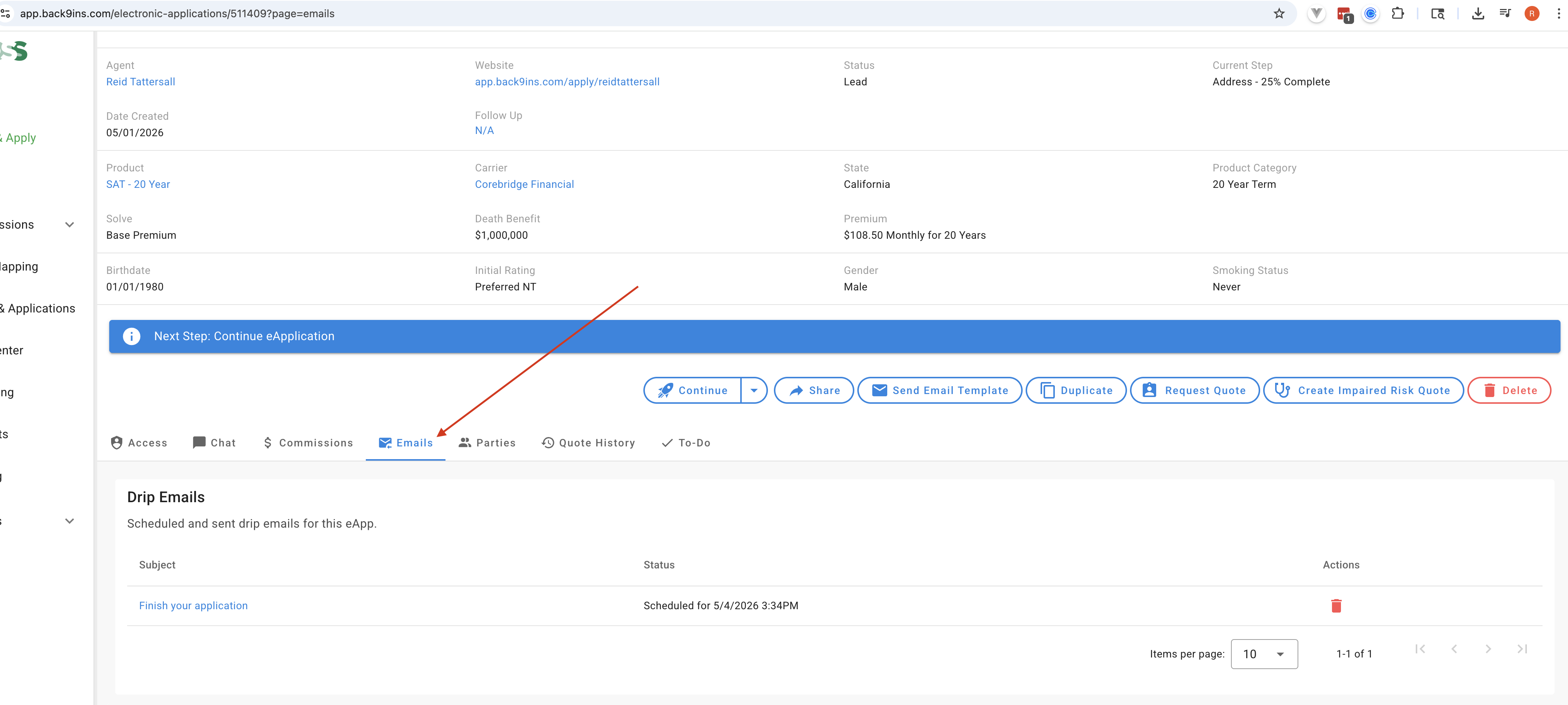
To track email activity:
- Open an eApp.
- Navigate to the Email tab.
Here you can view both scheduled and sent emails.
Sending a One-Off Email
Need to send a single email manually?
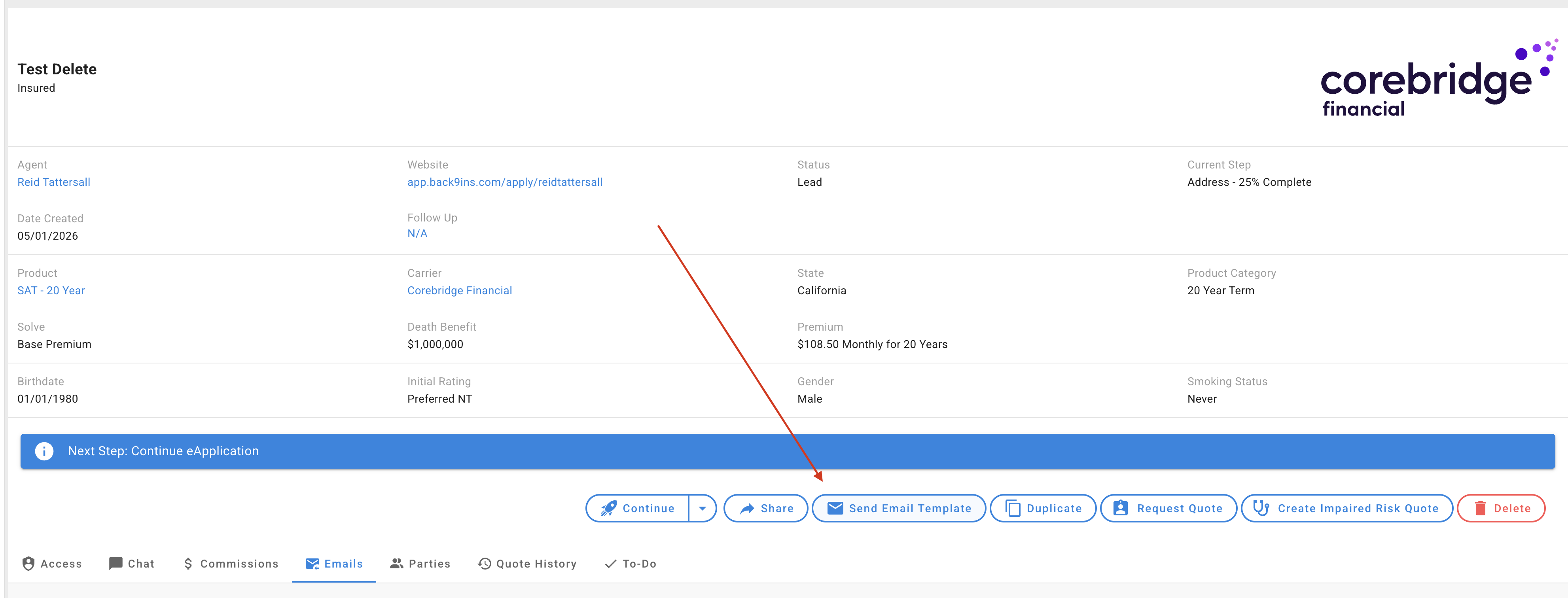
- Open an eApp.
- Click “Send Email Template”.
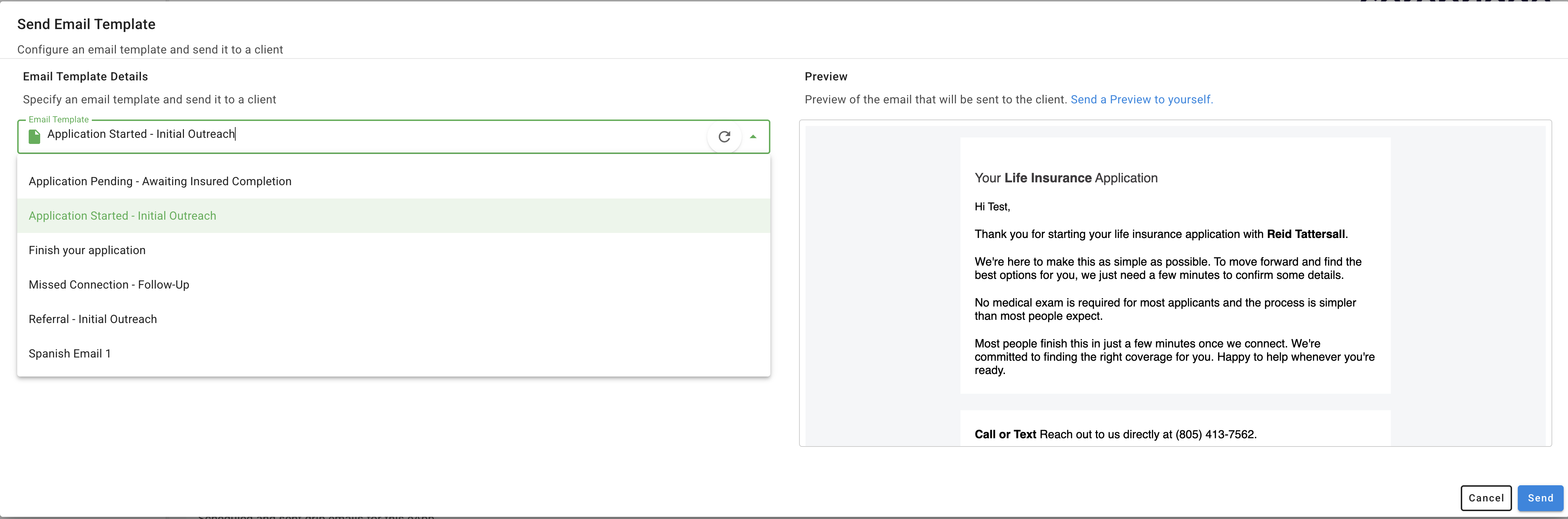
- Select your template and send.
Summary
- Enable drip emails from the Marketing tab
- Use default emails or create your own templates
- Schedule emails based on eApp status changes
- Monitor activity in the Email tab
- Send manual emails anytime using templates